Blog · Studying with AI
Turn your chatbot's answers into a practice quiz - without retyping anything
You already ask your chatbot for questions. The painful part is moving them somewhere you can actually practise. This walkthrough removes that part.
By QuizCaddy TeamPublished Updated
You already have the questions. The hard part comes next.
You ask your chatbot for ten practice questions. It sends back a wall of text. The questions are good. But now you have to copy them into a document, fix the numbering, and keep the answers in a separate place. By the time you finish, you have spent more time sorting than studying.
That is the problem this article fixes. QuizCaddy can take those questions and turn them into a saved set you can practise (we call it a deck). You can still ask your chatbot in the normal way. The difference is what happens after it answers.
There are three ways to move questions into QuizCaddy. This article covers the fastest one for people who use the same chatbot often: plug it in once, then let it send questions over. No retyping. No messy documents.
You do not need to change how you talk to your chatbot. You do not need to learn a new way to ask for questions. You only need to approve the connection once. After that, the chatbot can send questions while you stay in the same chat.
What “plugging in your chatbot” means
A chatbot is the app you talk to, such as Claude, ChatGPT, or Grok. QuizCaddy can give that app a way to hand questions over without copy and paste. Some chatbots call this a connector. The technical name is MCP, short for Model Context Protocol - think of it as a plug that lets your chatbot pass questions to QuizCaddy.
You only set this up once. After that, you can ask for questions as usual and tell the chatbot to send them. You stay in control of what gets sent. The chatbot only sends questions when you ask it to.
You do not need to learn special commands. Ask in your own words. If the chatbot asks which tool to use, choose QuizCaddy.
Before you start
- A QuizCaddy account. Creating one takes a minute.
- A chatbot that offers custom connectors. Claude, ChatGPT, and Grok are common examples, but the option may depend on your plan.
- About five minutes for the first setup. After that, sending a deck takes seconds.
Works with your chatbot
One-time setup
The recipe: connect once
Follow these steps in order. The menu names may be slightly different in your chatbot, so look for the same idea rather than the exact wording.
Open the connection page
Sign in to QuizCaddy. Click Connect in the top menu, then click Set up a chatbot.
The Connect link in QuizCaddy and the Set up a chatbot button. Copy the QuizCaddy address
The setup page shows an address for your chatbot. Click Copy. Keep the page open for the next step.
The connection address and Copy button on the QuizCaddy setup page. Open your chatbot’s connector menu
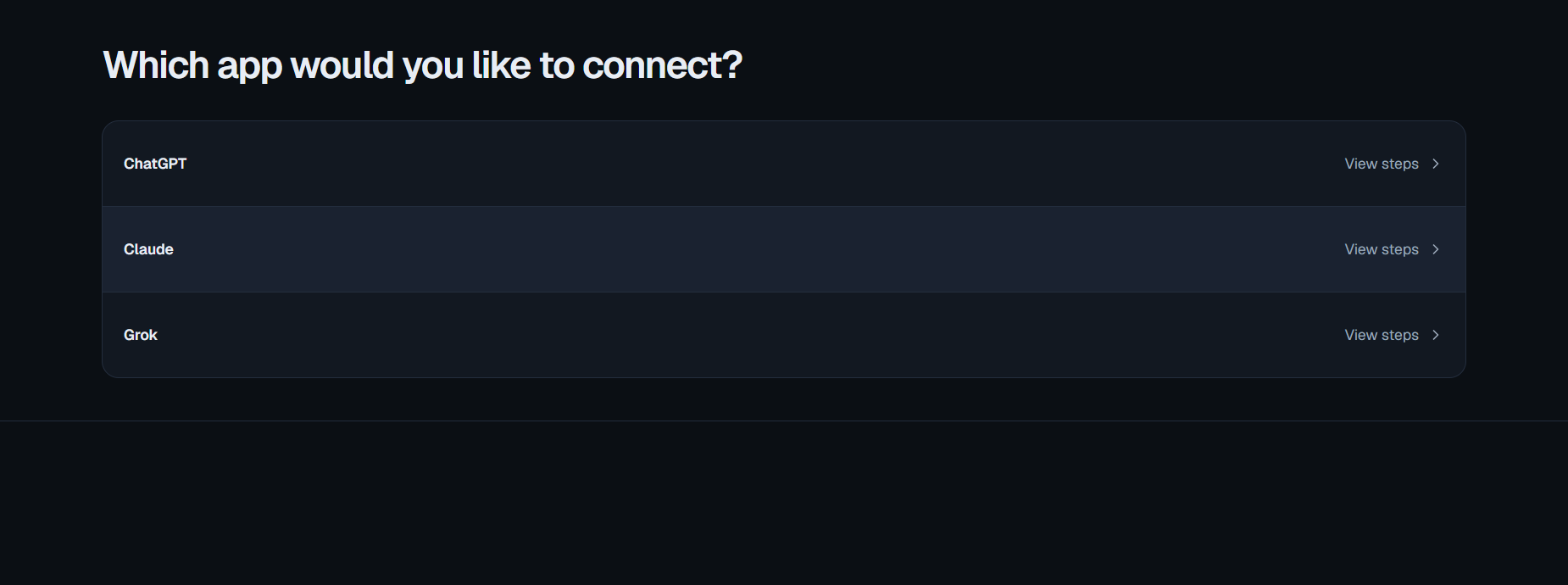
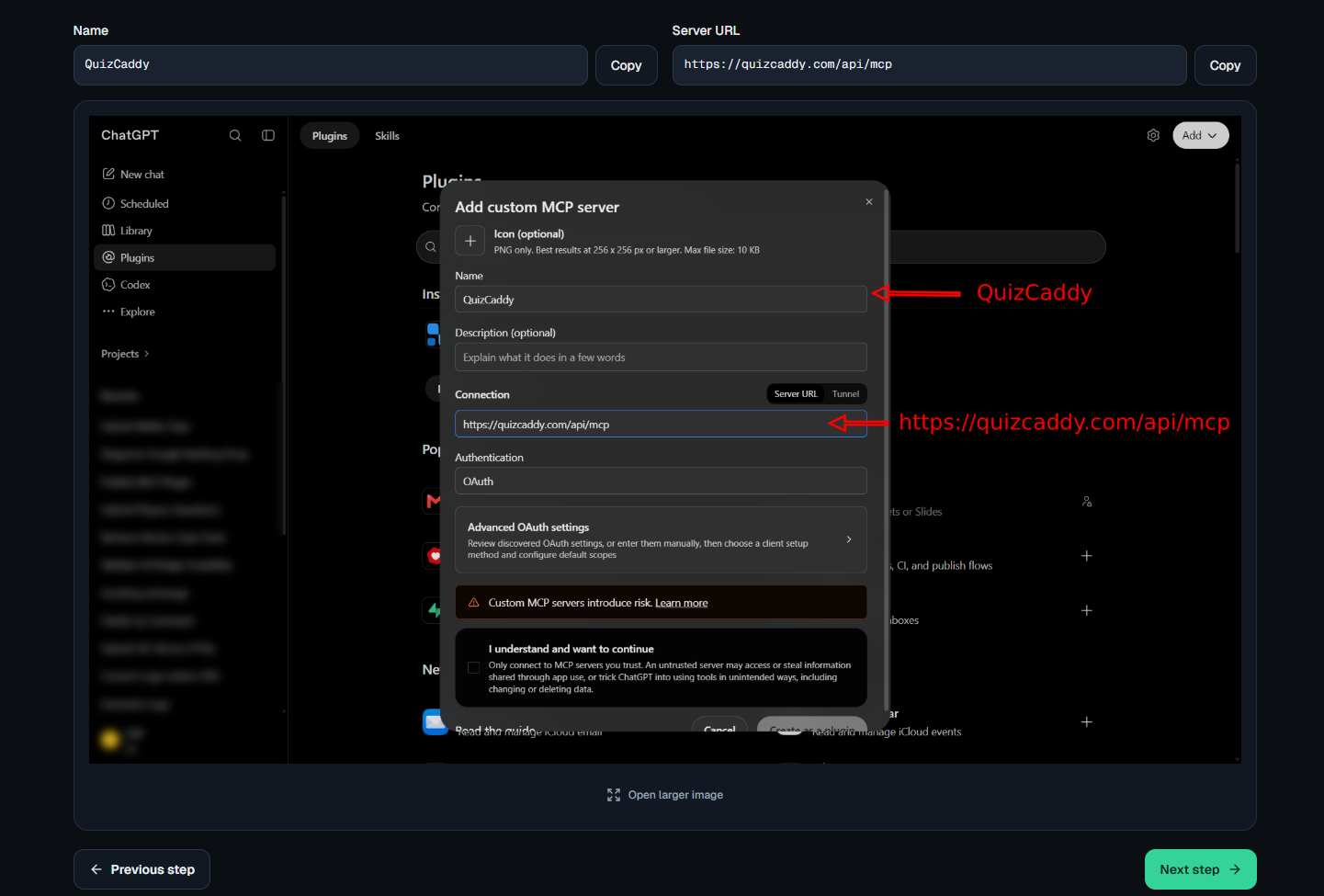
In Claude, open Settings, then Connectors, then Add custom connector. In ChatGPT, open Settings, then Connectors, and choose Add custom connector. In Grok, open Settings, then Connectors. Look for the word “connector” if the path is different.
The custom connector menu inside a chatbot. Paste the address and approve access
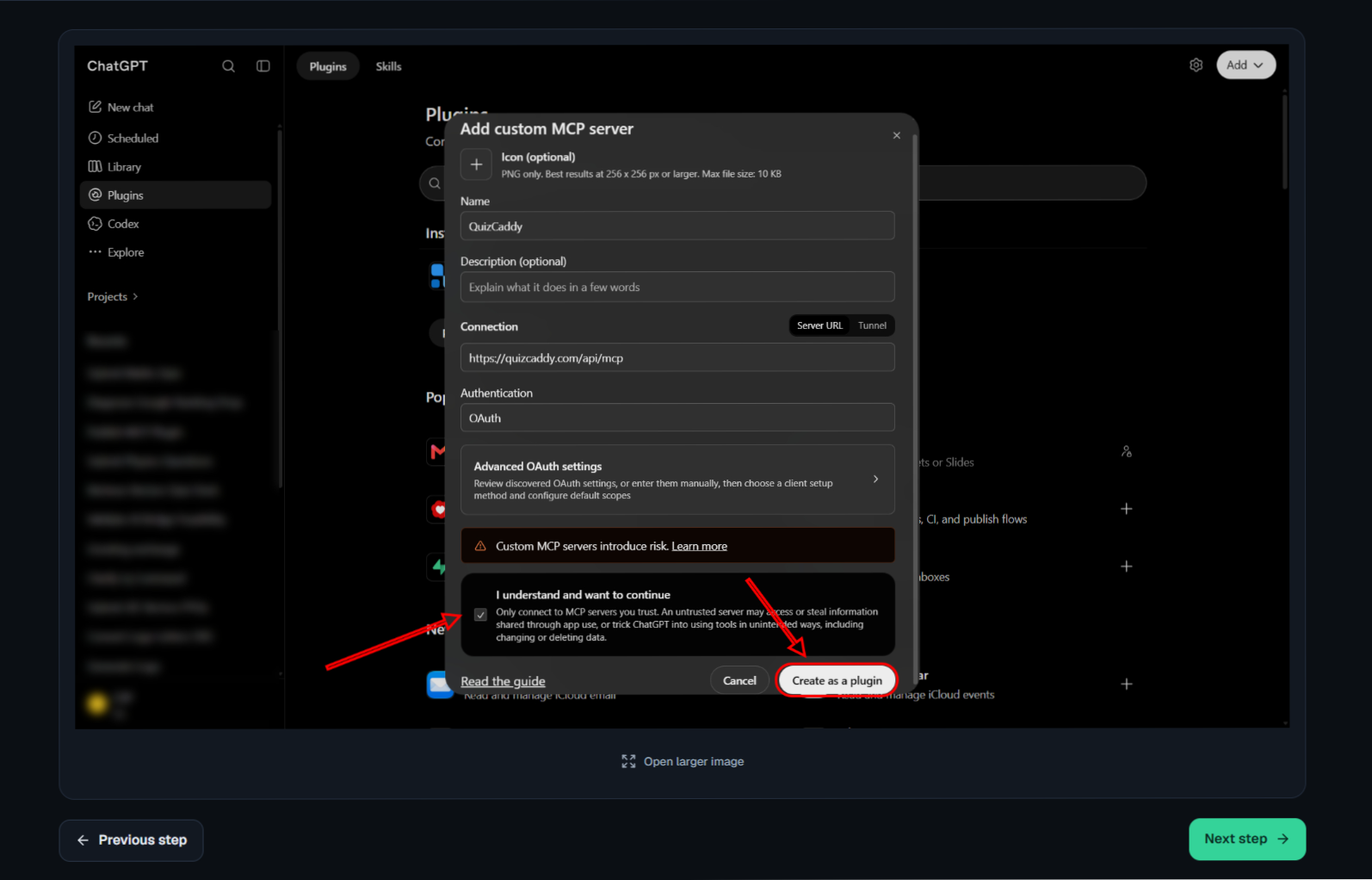
Paste the address from step 2 into the connector’s address field. Click Connect. QuizCaddy opens an approval screen. Sign in if asked, then click Allow.
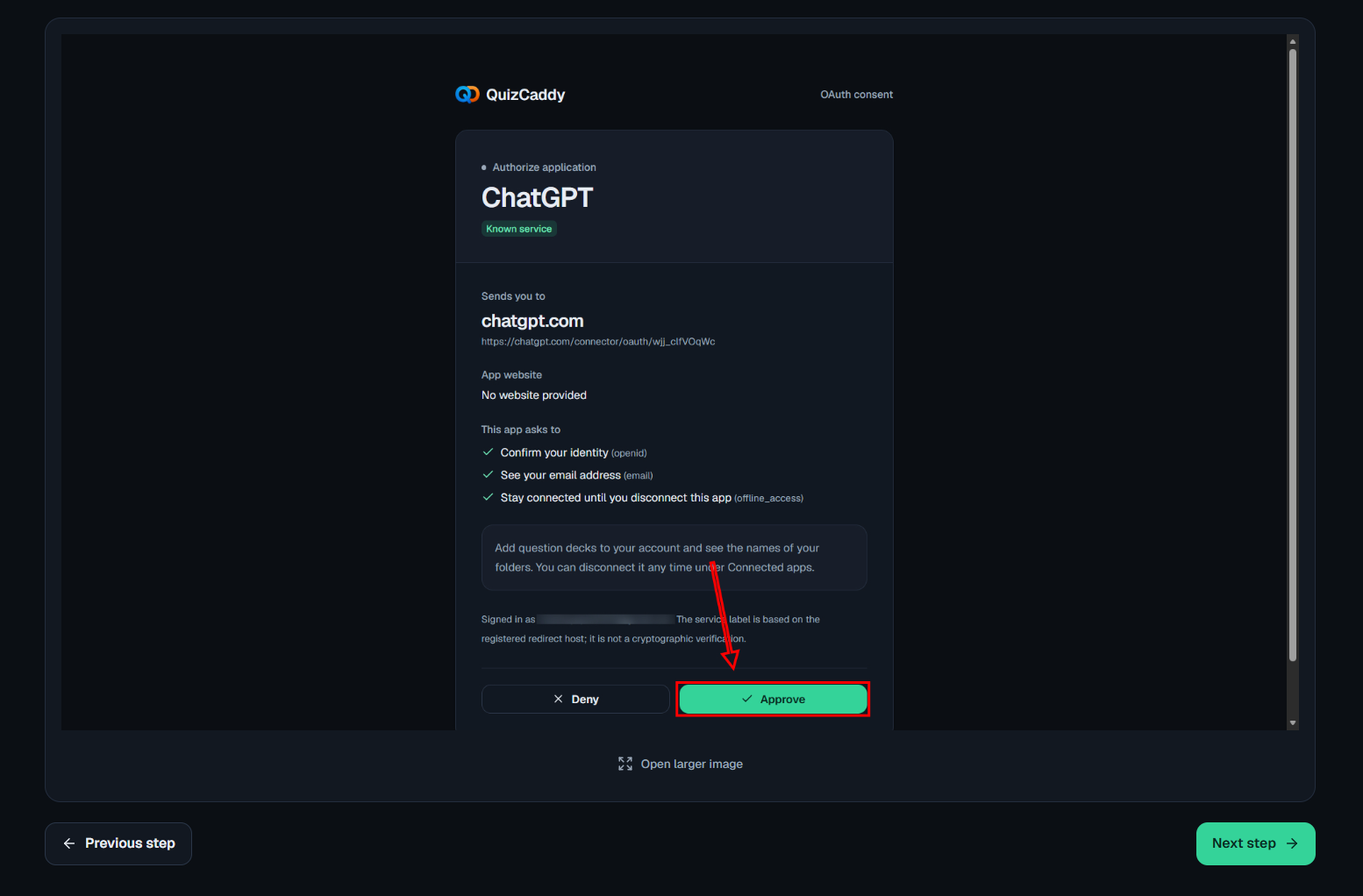
The QuizCaddy approval screen with the Allow button. Ask for questions in the normal way
Return to your chatbot. Ask for questions the way you always do. For example: “Give me 8 multiple-choice questions on photosynthesis for a 15-year-old. Include the answer and a short explanation for each.” Then add: “Send them to QuizCaddy.”
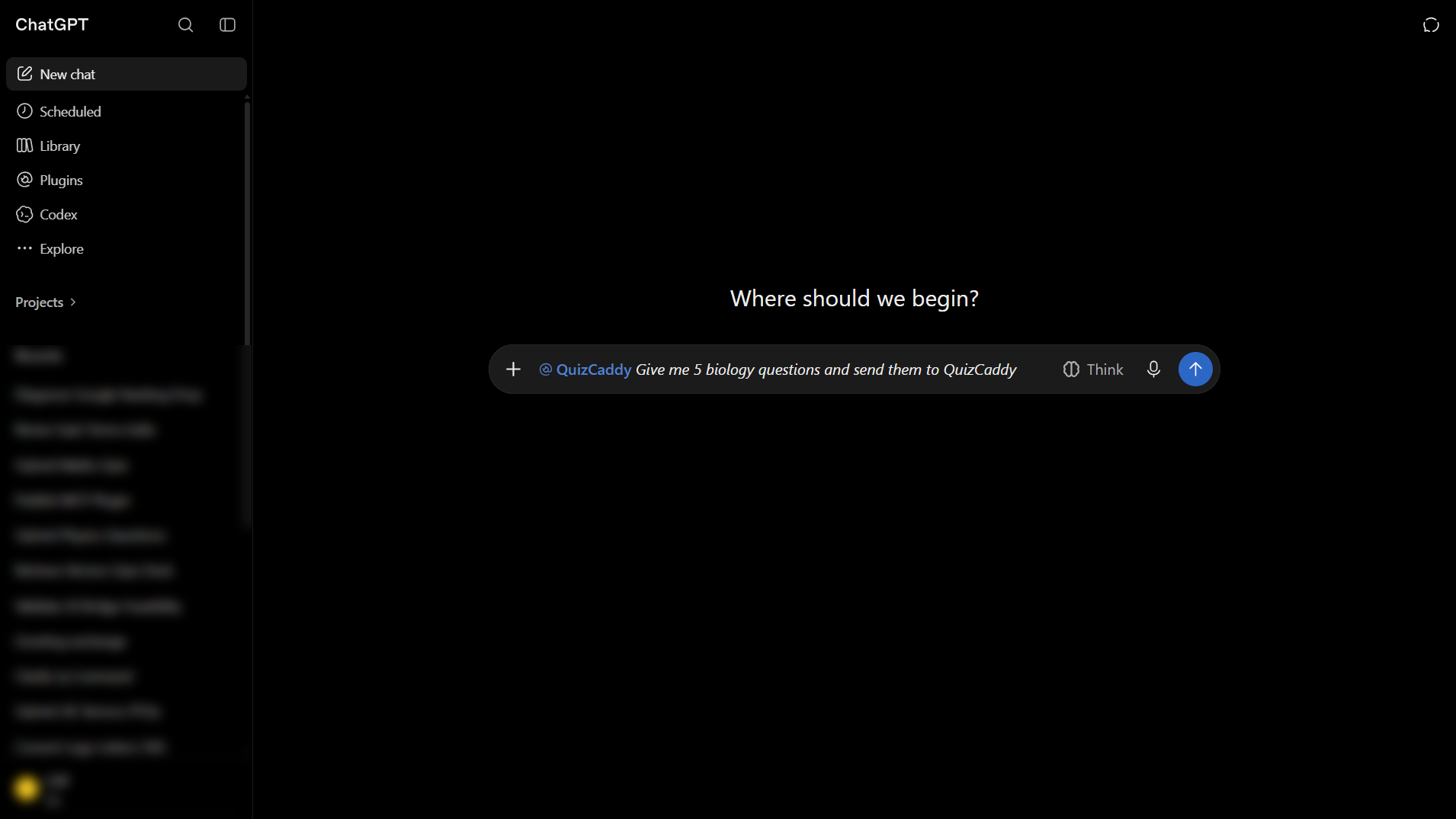
A request for eight practice questions and the instruction to send them to QuizCaddy. Check the deck in QuizCaddy
Open QuizCaddy and go to your question bank. The new deck should appear with the title your chatbot gave it. Click the deck, then click Practise.
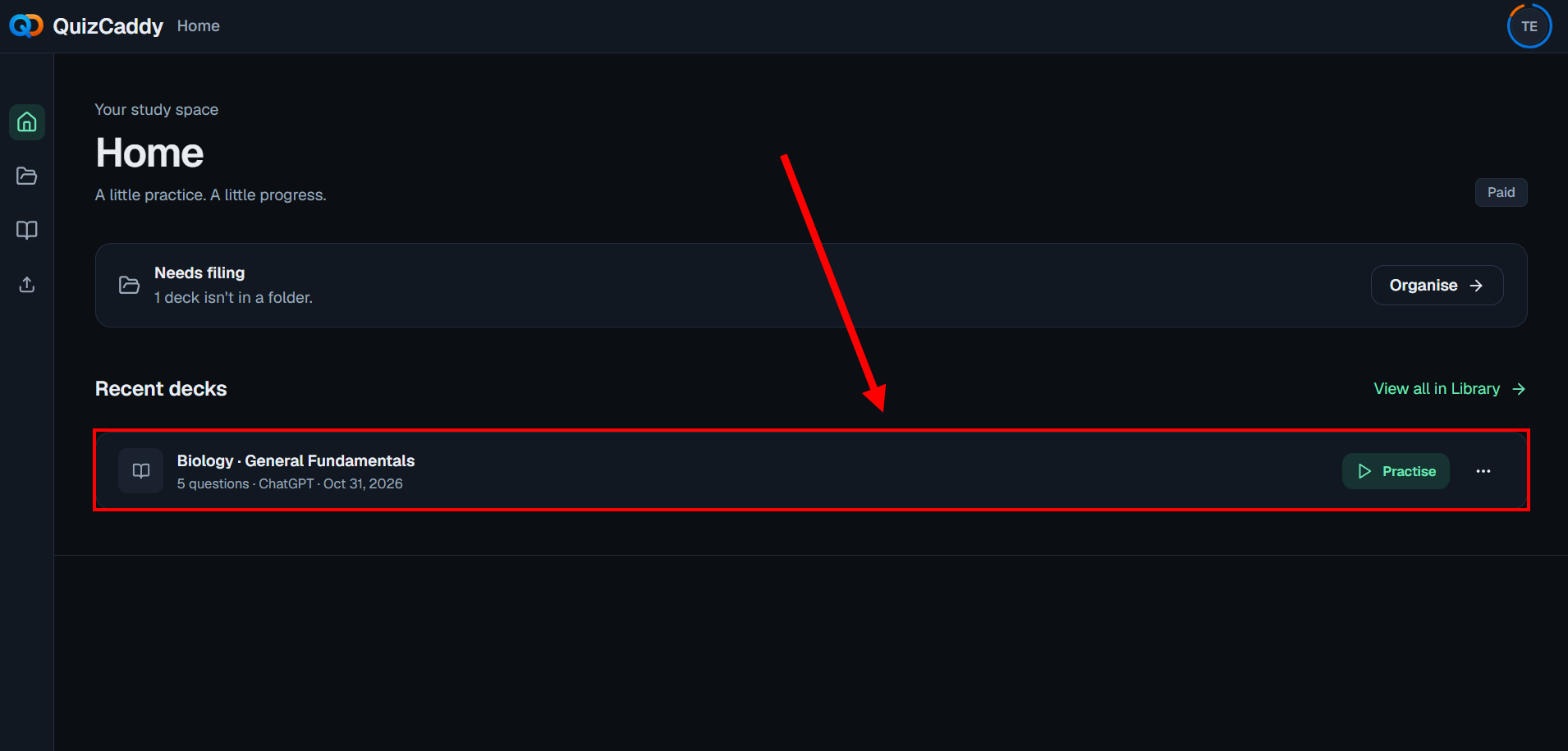
The new deck in the QuizCaddy question bank and its Practise button. Practise right away
Answer the first question without looking at your notes. If you get it wrong, read the explanation. QuizCaddy keeps that question in your mistakes list so you can try it again.
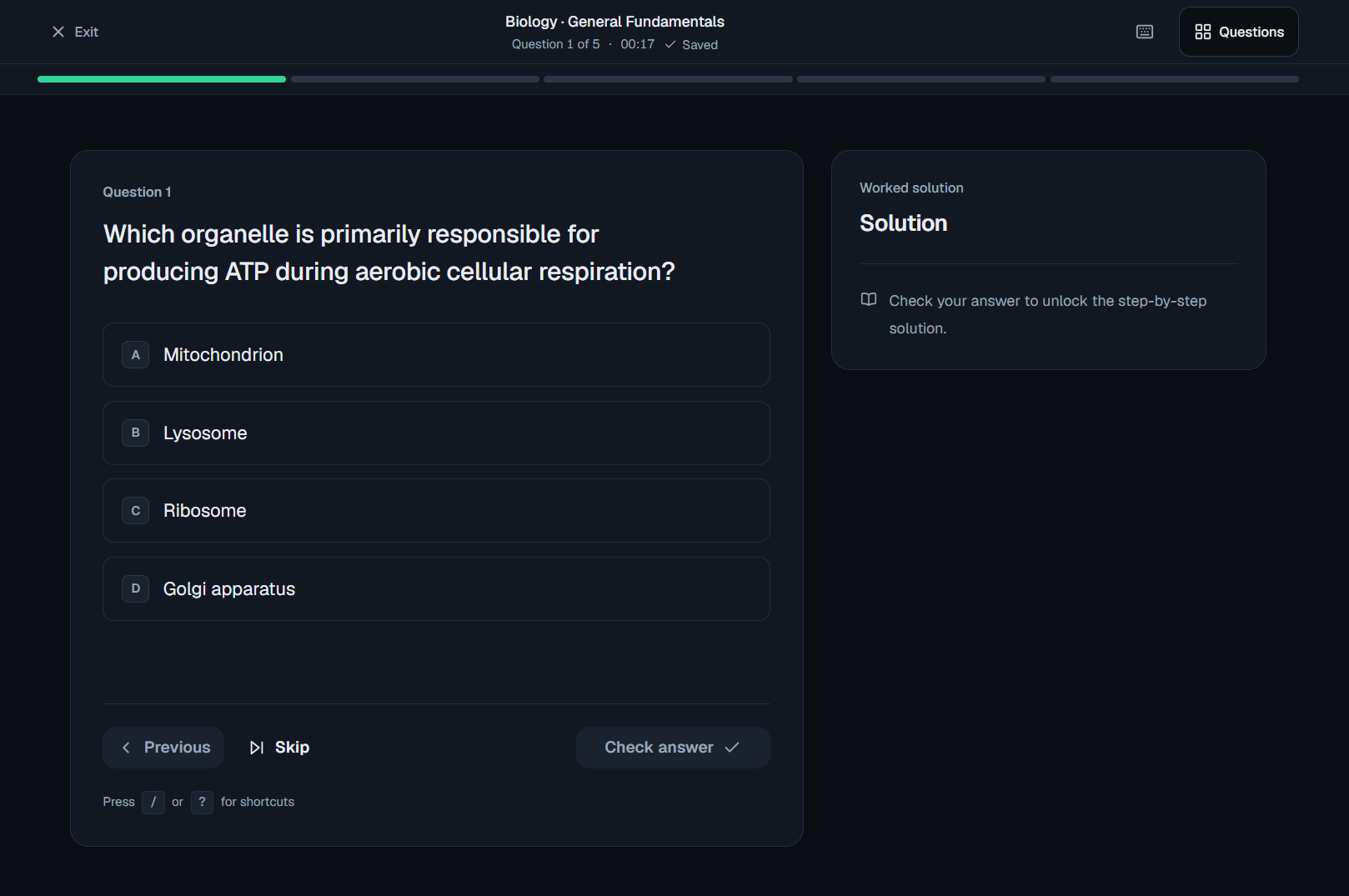
A practice question after answering, with the explanation visible.
If the questions do not appear
- Check that you approved the connection in step 4.
- Ask the chatbot to send the questions again. Be direct: “Send those questions to QuizCaddy.”
- Open the question bank and refresh the page.
- If your chatbot has no connector option, use copy and paste or upload instead. Both are explained in the next article.
A missing deck is usually a connection problem, not a lost quiz. Start with the approval screen. That is the step people skip most often.
When QuizCaddy is not the right choice
QuizCaddy is not the right choice if you need a teacher dashboard, class rosters, or live supervision of students. It also may not fit if you only want a one-time quiz and do not want an account. In those cases, a shared document or your chatbot’s own quiz mode may be enough.
The point is to spend your time answering
Connecting takes a few minutes once. After that, the boring part disappears. You ask for questions, they land in a deck, and you start practising.
That matters because reading questions is not the same as answering them. The next time you ask your chatbot for help, send the questions somewhere you can actually use them.
You can still use copy and paste for a one-off set. The connection is there for the sets you make again and again.
You do not need to prepare a perfect request. A simple sentence works. The chatbot can ask a follow-up if it needs more detail. Give each deck a clear title so you can find it later.
Related reading
- Connect a chatbot to QuizCaddySee what the connection does, which chatbots work with it, and how to set it up.
- Read the step-by-step setup guideA shorter checklist for Claude, ChatGPT, Grok, and other chatbots.
- Build a self-study routineTurn chatbot questions into practice, feedback, and mistake review.
Connect your chatbot once
Create a free account, follow the setup page, and send your first deck tonight.